
Download FRAPS – Free Screen Capture & Game Recording Software for Windows
Why FRAPS Stands Out as a Go-To Screen Capture Tool for Gamers
FRAPS has been a staple in the gaming and content creation community for over a decade, offering a reliable and lightweight solution for recording gameplay and capturing high-quality screenshots. Designed specifically for Windows users, this software excels in performance monitoring and video capture without taxing your system. Whether you're a casual gamer, a competitive player, or a content creator aiming to produce walkthroughs, FRAPS delivers a seamless experience.
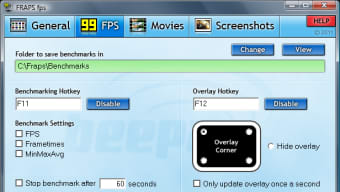
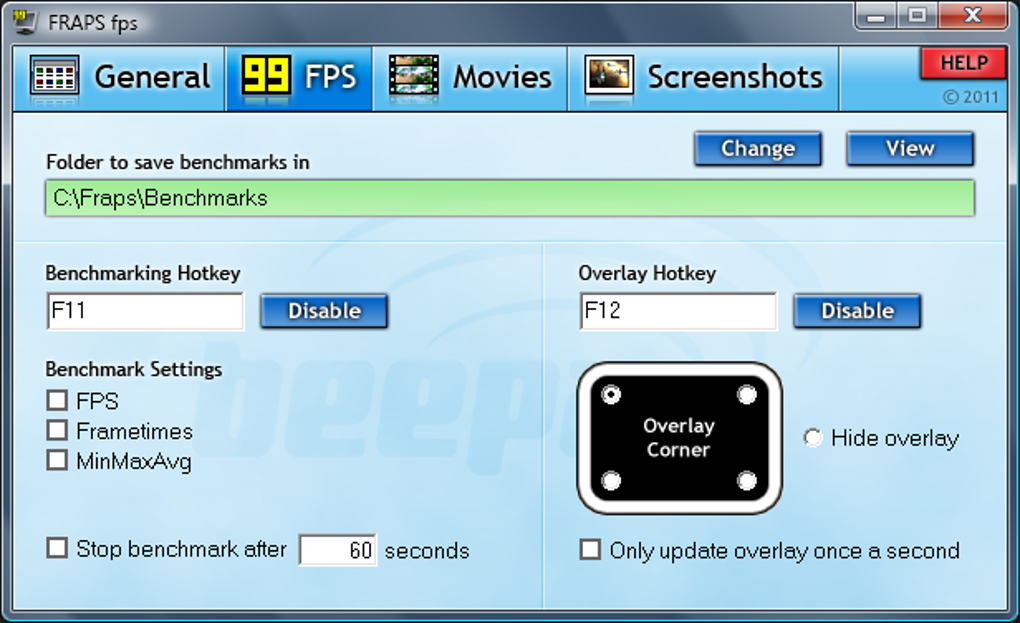
Its standout feature is the real-time frame rate (FPS) display, which can be positioned in any corner of your screen—perfect for tracking performance during intense gaming sessions. This makes it not just a recording tool but also a powerful benchmarking utility. Even in its unregistered form, FRAPS provides valuable insights into your system’s capabilities, helping you optimize settings for smoother gameplay.
The software runs efficiently on systems as old as Windows XP, making it accessible to users with legacy hardware. It supports DirectX 11, ensuring compatibility with modern games and applications. Despite its age, FRAPS continues to receive regular updates to fix bugs, improve stability, and address recording glitches that could cause flickering or crashes.
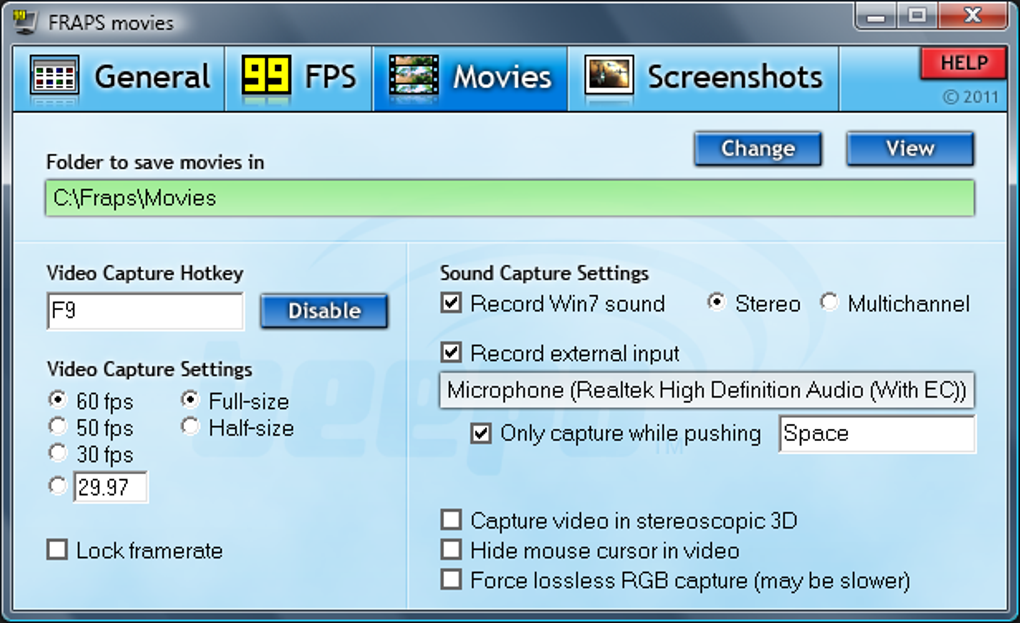
The intuitive interface allows beginners to get started quickly, while advanced users appreciate the customizable hotkeys for screenshots and recording. With the ability to capture both game audio and microphone input simultaneously, you don’t need additional tools to sync sound with visuals. This makes FRAPS a convenient all-in-one solution for recording gameplay footage and creating tutorials.
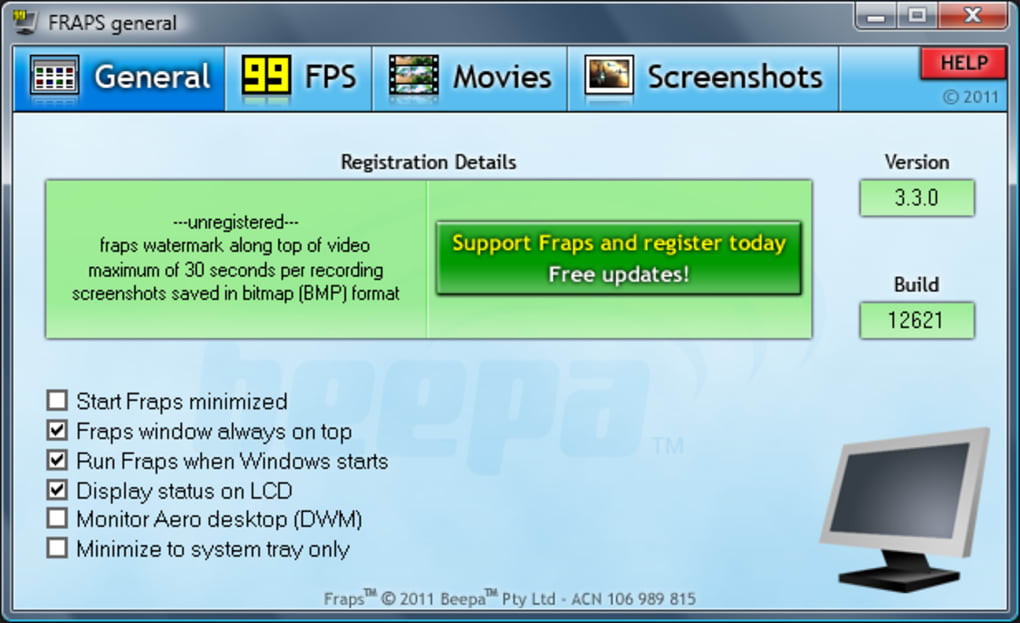
While the free version comes with limitations—30-second recordings and a watermark—its core functionality remains robust and highly effective for short clips and performance testing.
Key Features and Benefits of Using FRAPS for Video and Screenshot Capture
FRAPS is packed with features that make it a top choice for gamers and digital creators. One of its most praised capabilities is the real-time FPS counter, which displays your current frame rate directly on-screen. You can customize its position—top-left, top-right, bottom-left, or bottom-right—so it doesn’t obstruct your gameplay.
This feature is invaluable for benchmarking and optimizing game settings. The software also supports high-quality video recording with minimal performance impact, allowing you to record gameplay without noticeable lag or frame drops. Audio is captured seamlessly from both the game and your microphone, eliminating the need for third-party audio editing tools.
For screenshot enthusiasts, FRAPS offers hotkey-based capture, with options to take single shots or set up automatic captures at regular intervals. This is perfect for creating walkthroughs or documenting in-game progress. While the unregistered version saves screenshots in BMP format—larger file sizes and less common—registered users gain access to JPG, TGA, and PNG formats, offering better compression and compatibility.
The software is extremely lightweight, with a small installation file and minimal RAM usage, making it ideal for older or low-spec machines. It supports Windows XP and later versions, ensuring broad accessibility. Another advantage is its compatibility with DirectX 11, which is essential for modern gaming and graphics-intensive applications.
FRAPS also includes a built-in video editor for basic trimming and exporting. Although it doesn’t offer advanced editing features, it’s sufficient for quick edits before sharing on platforms like YouTube or Twitch. The software’s stability has improved significantly over recent updates, with fixes for recording instability and crash issues.
For users who want a no-frills, efficient tool that gets the job done, FRAPS remains a strong contender in the screen capture space.
Installation & Usage: How to Get Started with FRAPS
Installing FRAPS is a straightforward process that takes just a few minutes. First, visit the official website and download the latest version of the software—available for Windows only. The installer is small and quick to download, requiring minimal disk space.
Once downloaded, run the setup file and follow the on-screen instructions. The installation wizard will guide you through the process, and you’ll have FRAPS up and running in no time. After installation, launch the application.
The main interface is minimal and user-friendly, with clear options for recording, screenshots, and FPS display. To begin recording gameplay, open your game first, then start FRAPS. Use the default hotkey (usually F9) to start and stop recording.
The recorded video will be saved in the default folder, typically within the FRAPS directory. For screenshots, use the designated hotkey (often F12) to capture the current screen. You can also access the settings menu to customize hotkeys, choose output formats, and adjust the FPS counter’s position.
If you’re using the unregistered version, remember that recordings are limited to 30 seconds and will include a FRAPS watermark. To remove these restrictions, you’ll need to purchase a license. Registered users enjoy unlimited recording time, no watermarks, and support for multiple image formats.
The software runs in the background, so you can play games without interruption. It’s recommended to close unnecessary applications before recording to ensure optimal performance. FRAPS also integrates well with streaming platforms and video editing software, making it easy to export and share your content.
Pros and Cons of Using FRAPS – A Balanced Review
- Pros:
- Lightweight and runs smoothly on older systems (Windows XP and later)
- Real-time FPS counter for performance benchmarking
- Minimal system impact during recording
- Supports DirectX 11 and modern games
- Easy-to-use interface with customizable hotkeys
- Captures both game audio and microphone input
- Regular updates for bug fixes and stability improvements
- Cons:
- Unregistered version limits recordings to 30 seconds with watermark
- Large video file sizes due to lack of compression
- Only supports BMP format in free version
- No advanced video editing features
- Not available for Mac, iOS, or Android
Frequently Asked Questions (FAQ)
Is FRAPS free to download and use?
Yes, FRAPS is free to download and use. However, the unregistered version has limitations: recordings are capped at 30 seconds and include a FRAPS watermark. For full functionality, including unlimited recording and no watermark, a paid license is required.
Can I use FRAPS to record gameplay on Windows 11?
Yes, FRAPS is fully compatible with Windows 11 and later versions of Windows, including Windows 10, 8, 7, and XP. It supports DirectX 11, ensuring smooth performance with modern games.
Does FRAPS support audio recording?
Yes, FRAPS captures both game audio and microphone input during video recording. This allows you to record voice commentary or in-game sounds without needing additional software.
Why are my FRAPS recordings so large?
FRAPS saves videos in an uncompressed format by default, which results in large file sizes. To reduce size, you’ll need to use a video converter or compressor like HandBrake or FFmpeg after recording.
What are better alternatives to FRAPS?
Top alternatives include OBS Studio (free and open-source), Bandicam (user-friendly with advanced features), and NVIDIA GeForce ShadowPlay (optimized for NVIDIA GPUs). These tools offer more features and better file compression.
Final Verdict: Is FRAPS Still Worth It in 2024?
Despite being one of the older screen capture tools, FRAPS remains a solid choice for gamers and content creators who value simplicity, performance, and benchmarking capabilities. Its lightweight design, minimal system impact, and reliable FPS tracking make it ideal for testing game performance on older or budget systems. While the free version has limitations—30-second clips and watermarks—its core functionality is still highly effective for quick recordings and performance checks.
For those willing to invest in a license, the benefits are significant: unlimited recording, no watermark, and support for modern image formats. However, if you’re looking for advanced editing, smaller file sizes, or cross-platform support, you might want to consider alternatives like OBS Studio or Bandicam. Overall, FRAPS is a secure, stable, and efficient tool that continues to deliver value.
If you're a Windows user focused on gaming, benchmarking, or quick screen captures, download FRAPS today and experience a trusted tool that’s stood the test of time.







